 Cytoscape Wiki
|
← Revision 1 as of 2012-07-10 20:52:06 →
Size: 2336
Comment:
|
← Revision 13 as of 2016-04-26 22:20:50
Size: 61
Comment:
|
| Deletions are marked like this. | Additions are marked like this. |
| Line 1: | Line 1: |
|
=== What are CytoPanels? === '''''CytoPanels''''' are floatable/dockable panels designed to cut down on the number of pop-up windows within Cytoscape and to create a more unified user experience. They are named based on their functions -- ''Control panel'', ''Table panel'', ''Tool panel'' and ''Result panel''. The following screenshot shows the file {{{yeastHighQuality.sif}}} and GO annotations loaded into Cytoscape, performed Force-Directed layout, enable Align and Distribute tools, and then run MCODE plugin for the data sets. In ''Control Panel'' (at the left-hand side of the screen), the Network Manager, Network Overview, VizMapper and Filters have been loaded. On the bottom of the panel, there is another CytoPanel called ''Tool Panel''. In the ''Table Panel'', the Attribute Browser has been loaded. In addition, Result of the analysis by MCODE plugin is shown in ''Result Panel'' (at the right-hand side). {{attachment:cytopanel-default.png}} The user can then choose to resize, hide or float CytoPanels. For example, in the screenshot below, the user has chosen to float all panels and toolbar: {{attachment:cytopanel-float.png}} === Basic Usage === Cytoscape includes four !CytoPanels: '''''Control Panel''''' on the left, '''''Tool Panel''''' on the bottom of ''Control Panel'', '''''Table Panel''''' on the bottom, and '''''Result Panel''''' on the right. By default, ''Control Panel'' and ''Data Panel'' will appear. ''Result Panel'' may appear, depending on the mix of Cytoscape plugins that you currently have installed. ''Tool Panel'' will appear when you select the following commands under the ''Layout'' menu: ''Rotate'', ''Scale'', and ''Align and Distribute''. All panels can be shown or hidden using the View → Show/Hide functions. {{attachment:cytopanel-menu-items.png}} In addition, !CytoPanels can be floated or docked by selecting the icon at the top right corner of each !CytoPanel. The icon and tooltip will change based on the !CytoPanel state. If the !CytoPanel is docked, clicking on the icon will float the !CytoPanel, as indicated by the “Float Window” tooltip. Alternatively, if the !CytoPanel is floating, clicking on the icon will dock the !CytoPanel, as indicated by the “Dock Window” tooltip. {{attachment:cytopanel-float-dock-icon.png}} |
#DEPRECATED <<Include(Cytoscape_3/UserManual/Deprecated)>> |
This is a legacy document
This page has been deprecated and is no longer updated. The current version of the Cytoscape manual can be found at http://manual.cytoscape.org/
What are Panels?
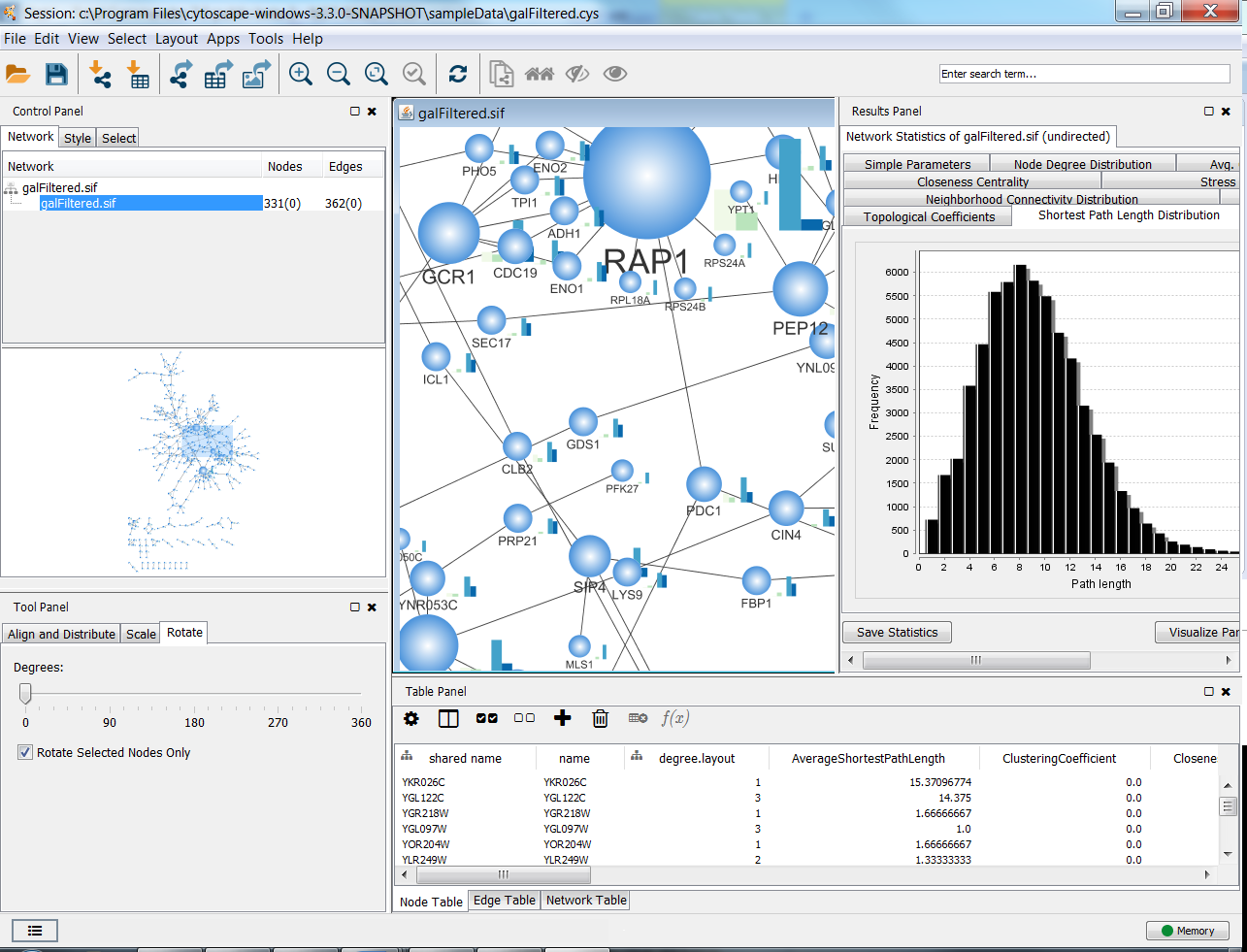
Panels are floatable/dockable panels designed to cut down on the number of pop-up windows within Cytoscape and to create a more unified user experience. They are named based on their functions -- Control Panel, Table Panel, Tool Panel and Result Panel. The following screenshot shows the file galFiltered.sif loaded into Cytoscape, with a force-directed layout, Rotate tools showing in the Tool Panel, and with results from Network Analyzer (Tools → Network Analysis → Analyze Network). The Control Panel (at the left-hand side of the screen) contains the Network Manager, Network Overview, Styles and Select tabs. On the bottom of the panel, there is another panel called Tool Panel. In the Table Panel, the Node Table is shown. In addition, analysis results from Network Analyzer are shown in Result Panel (at the right-hand side).
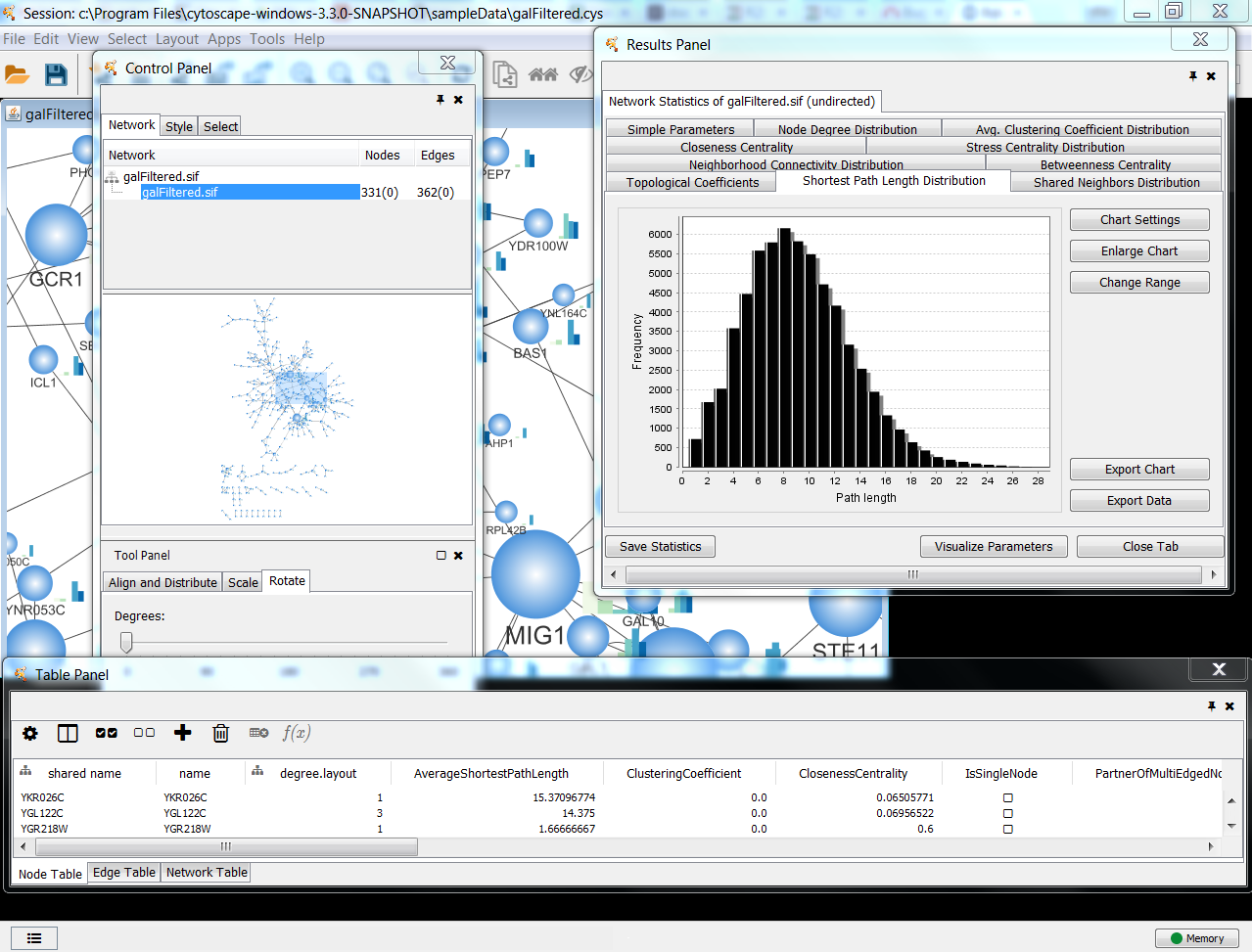
The user can then choose to resize, hide or float Panels. For example, in the screenshot below, the Network, Table and Results panels are floating and the Tool Panel is hidden:
Basic Usage
Cytoscape includes four Panels: the Control Panel on the left, Tool Panel on the bottom of the Control Panel, the Table Panel on the bottom right, and the Result Panel on the right. By default, only the Control Panel and the Data Panel will appear. The Result Panel may appear, depending on the mix of Cytoscape apps that you currently have installed. The Tool Panel will appear when you select the following commands under the Layout menu: Rotate, Scale, and Align and Distribute.
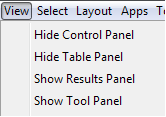
All panels can be shown or hidden using the View → Show/Hide functions.
In addition, Panels can be floated or docked using icon buttons at the top right corner of each Panel. The Float Window control  will undock any panel which is useful when you want assign the network panel as much screen space as possible. To dock the window again, click the Dock Window icon
  . Clicking the Hide Panel icon
  will hide the panel; this can be shown again by choosing View → Show and selecting the relevant panel.