 Cytoscape Wiki
|
Size: 7531
Comment:
|
Size: 7594
Comment:
|
| Deletions are marked like this. | Additions are marked like this. |
| Line 10: | Line 10: |
| This is an introduction to Cytoscape 3 Plugin development for Eclipse users. | This is an introduction to Cytoscape 3 App development for Eclipse users. |
| Line 27: | Line 27: |
|
=== Installing Plugin From Eclipse Marketplace === Eclipse Indigo supports plugin ''store'' called '''''[[http://marketplace.eclipse.org/|Eclipse Marketplace]]'''''. All of the following plugins are available from the Marketplace. To install plugins, open the Marketplace dialog ('''Help → Eclipse Marketplace'''), type plugin name in the search box, and click ''install'' button. |
=== Installing Eclipse Plugins From Eclipse Marketplace === Eclipse Indigo supports a plugin ''store'' called '''''[[http://marketplace.eclipse.org/|Eclipse Marketplace]]'''''. All of the following plugins are available from the Marketplace. To install an Eclipse plugin, open the Marketplace dialog ('''Help → Eclipse Marketplace'''), type the plugin name in the search box, and click ''install'' button. |
| Line 34: | Line 34: |
|
=== Plugins to install === You need to install some plugins to develop Cytoscape 3 plugins. All of the following are required to develop Cytoscape 3 (or any Java applications using Maven and Spring). |
=== Eclipse Plugins to Install === You need to install some Eclipse plugins to develop Cytoscape 3 apps. All of the following are required to develop Cytoscape 3 (or any Java applications using Maven and Spring). |
| Line 46: | Line 46: |
| To use this client from Eclipse, you need to switch client to '''SVNKit'''. | To use this client from Eclipse, go to Eclipse>Preferences>Team>SVN and switch the client to '''SVNKit'''. You can click 'OK' on any warnings that pop up about JavaHL since you are selecting an alternative. |
| Line 53: | Line 53: |
| M2Eclipse is a plugin to integrate Maven to Eclipse. ow it is a part of Eclipse foundation | M2Eclipse is an Eclipse plugin to integrate Maven. Now it is a part of Eclipse foundation. |
| Line 75: | Line 75: |
| Spring IDE helps you to debug/refactor Spring setting files on Eclipse. This is not required to build your plugin, but we strongly recommend to use this if you create ''Cytoscape 3 Native'' plugins. | Spring IDE helps you to debug/refactor Spring setting files on Eclipse. This is not required to build your Cytoscape app, but we strongly recommend to use this if you create ''Cytoscape 3 Native'' apps. |
| Line 79: | Line 79: |
| == Checkout Cytoscape 3 Plugin Developer's Template Project == | == Checkout Cytoscape 3 App Developer's Template Project == |
| Line 83: | Line 83: |
| 1. Make sure the URL is set to {{{http://chianti.ucsd.edu/svn/core3/plugin-developer/trunk/}}} (for core developers, {{{svn+ssh://grenache.ucsd.edu/cellar/common/svn/core3/plugin-developer/trunk/}}}). | 1. Make sure the URL is set to {{{http://chianti.ucsd.edu/svn/core3/app-developer/trunk/}}} (for core developers, {{{svn+ssh://grenache.ucsd.edu/cellar/common/svn/core3/app-developer/trunk/}}}). |
| Line 88: | Line 88: |
| == Build Plugin Developer's Template Project == | == Build App Developer's Template Project == |
| Line 104: | Line 104: |
| If you can run Cytoscape, now you are ready to code your plugin. | If you can run Cytoscape, now you are ready to code your app. |
| Line 106: | Line 106: |
|
== Create Plugin == There are two types of plugins for Cytoscape 3 and you can use Eclipse for both of them. |
== Create the App == There are two types of apps for Cytoscape 3 and you can use Eclipse for both of them. |
| Line 109: | Line 109: |
| === Simple Plugin === | === Simple App === |
| Line 111: | Line 111: |
|
1. Enter project name. This can be anything. In this example, we use '''''Cy3SimplePlugin''''' as a sample plugin name. 1. Add '''cytoscape-plugin-api''' jar file as a library 1. Right-click src folder and create a class file '''''HelloWorldPlugin'''''. Use ''org.cytoscape.sample'' as its package name |
1. Enter project name. This can be anything. In this example, we use '''''Cy3SimpleApp''''' as a sample app name. 1. Add '''cytoscape-app-api''' jar file as a library 1. Right-click src folder and create a class file '''''HelloWorldApp'''''. Use ''org.cytoscape.sample'' as its package name |
| Line 117: | Line 117: |
| Cytoscape-Plugin: org.cytoscape.sample.HelloWorldPlugin | Cytoscape-App: org.cytoscape.sample.HelloWorldApp |
| Line 119: | Line 119: |
| This is your Plugin's main class name. | This is your App's main class name. |
| Line 124: | Line 124: |
| 1. Write Plugin main class: | 1. Write App main class: |
| Line 128: | Line 128: |
|
import org.cytoscape.plugin.CyPlugin; import org.cytoscape.plugin.CyPluginAdapter; |
import org.cytoscape.app.CyApp; import org.cytoscape.app.CyAppAdapter; |
| Line 131: | Line 131: |
| public class HelloWorldPlugin extends CyPlugin { | public class HelloWorldApp extends CyApp { |
| Line 133: | Line 133: |
| public HelloWorldPlugin(CyPluginAdapter adapter) { | public HelloWorldApp(CyAppAdapter adapter) { |
| Line 146: | Line 146: |
| 1. Type plugin jar file name and click ''Next'' | 1. Type app jar file name and click ''Next'' |
| Line 152: | Line 152: |
| 1. Click ''Finish''. Make sure the plugin jar file exists in the directory you specified above. | 1. Click ''Finish''. Make sure the app jar file exists in the directory you specified above. |
| Line 154: | Line 154: |
| ==== Test your plugin ==== | ==== Test your app ==== |
| Line 156: | Line 156: |
|
1. Select '''''Plugins>Plugin Manager''''' 1. Select '''''Import Local Plugin''''' tab 1. Click '''''Select''''' button and select the plugin jar file you've created |
1. Select '''''Apps>App Manager''''' 1. Select '''''Import Local App''''' tab 1. Click '''''Select''''' button and select the app jar file you've created |
| Line 163: | Line 163: |
| [[http://opentutorials.cgl.ucsf.edu/index.php/Tutorial:Creating_a_Simple_Cytoscape_3_Plugin|Tutorial:Creating a Simple Cytoscape 3 Plugin]] | [[http://opentutorials.cgl.ucsf.edu/index.php/Tutorial:Creating_a_Simple_Cytoscape_3_App|Tutorial:Creating a Simple Cytoscape 3 App]] |
| Line 166: | Line 166: |
|
=== Cytoscape 3 Bundle Plugin === If you want to create ''Cytoscape 3 Native'' bundle plugin, please try the following tutorial: |
=== Cytoscape 3 Bundle App === If you want to create ''Cytoscape 3 Native'' bundle app, please try the following tutorial: |
| Line 169: | Line 169: |
| [[http://opentutorials.cgl.ucsf.edu/index.php/Tutorial:Creating_an_OSGi_Bundle_Cytoscape_3_Plugin|Tutorial:Creating an OSGi Bundle Cytoscape 3 Plugin]] | [[http://opentutorials.cgl.ucsf.edu/index.php/Tutorial:Creating_an_OSGi_Bundle_Cytoscape_3_App|Tutorial:Creating an OSGi Bundle Cytoscape 3 App]] |
Setting up an IDE : Eclipse |
Editor(s): KeiichiroOno PietMolenaar |
Date: September 12th 2011 |
Status: Updated for Cytoscape 3 M3 release. |
Contents
Introduction
This is an introduction to Cytoscape 3 App development for Eclipse users.
Prerequisites
You need to know basics of Eclipse and Maven.
Install JDK
To develop Cytoscape 3, you need Java 6 or 7. If you find problems on Java 7, please let us know.
Setting up Eclipse
This procedure had been tested with latest version of Eclipse, Indigo. You can use any version of Eclipse distribution, but we recommend to use Eclipse for RCP and RAP Developers or Eclipse IDE for Java Developers.
Use JDK, not JRE Make sure eclipse is running in the JDK virtual machine; on Windows this is not default. To use JDK's VM, create a shortcut and edit the shortcut's property: eclipse.exe -vm "c:\your_path_to_JDK\bin\javaw.exe"
Installing Eclipse Plugins From Eclipse Marketplace
Eclipse Indigo supports a plugin store called Eclipse Marketplace. All of the following plugins are available from the Marketplace. To install an Eclipse plugin, open the Marketplace dialog (Help → Eclipse Marketplace), type the plugin name in the search box, and click install button.
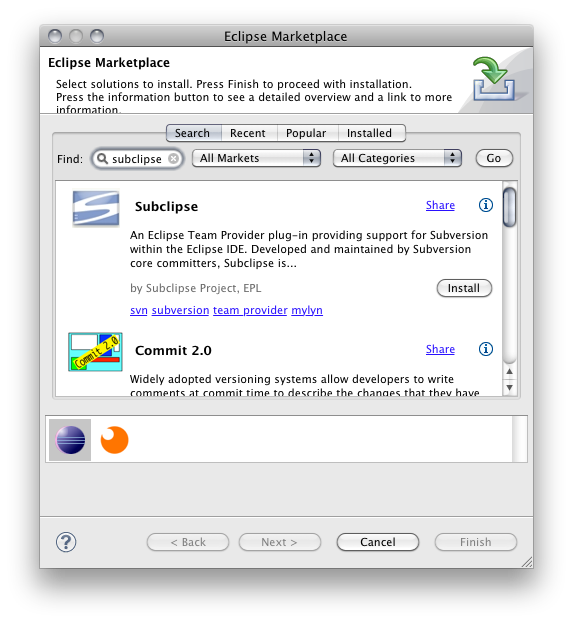
Usually, you will be asked to restart Eclipse after installing plugins.
Eclipse Plugins to Install
You need to install some Eclipse plugins to develop Cytoscape 3 apps. All of the following are required to develop Cytoscape 3 (or any Java applications using Maven and Spring).
Subclipse
To access our Subversion repository from Eclipse, you need to install Subversion client software for Eclipse. In this tutorial, we use Subclipse plugin.
Extensions for Subclipse By default, some of the essential functions are not installed with Subclipse. In some environments, you need to install some extra software (Help → Install New Software). We recommend to install Java Native Subversion Client:
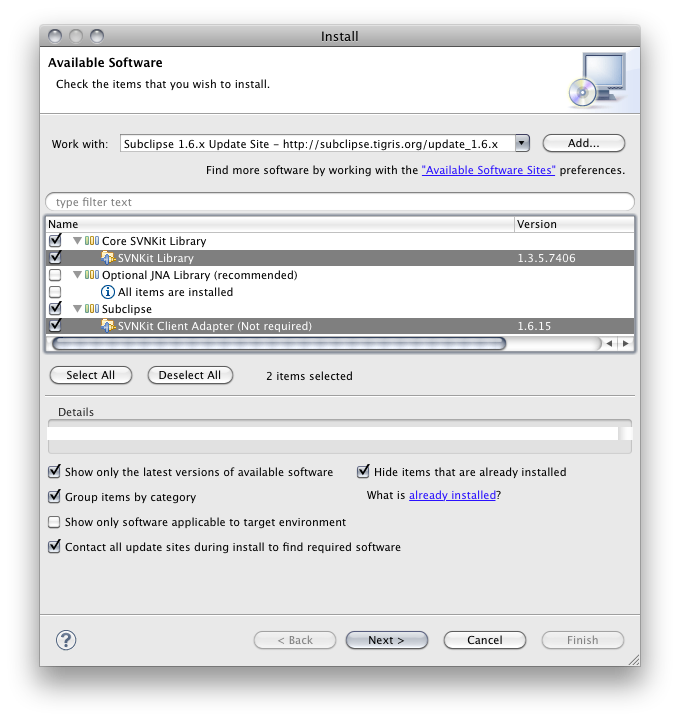
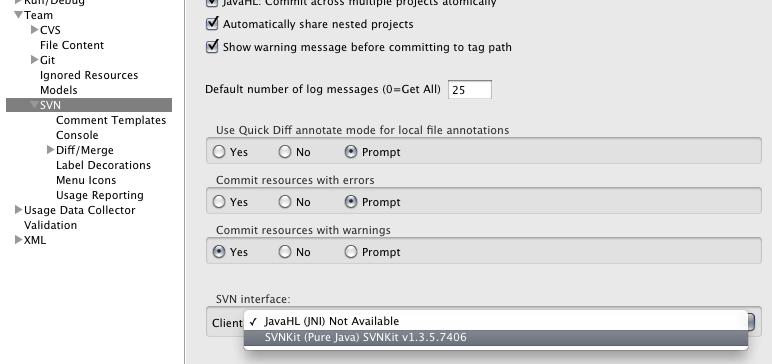
To use this client from Eclipse, go to Eclipse>Preferences>Team>SVN and switch the client to SVNKit. You can click 'OK' on any warnings that pop up about JavaHL since you are selecting an alternative.
m2eclipse
M2Eclipse is an Eclipse plugin to integrate Maven. Now it is a part of Eclipse foundation.
Many useful documents are available from the project and we recommend to read them.
Installing Extensions for m2eclipse Latest version of m2eclipse plugin uses its own extension system. You can install useful extensions for
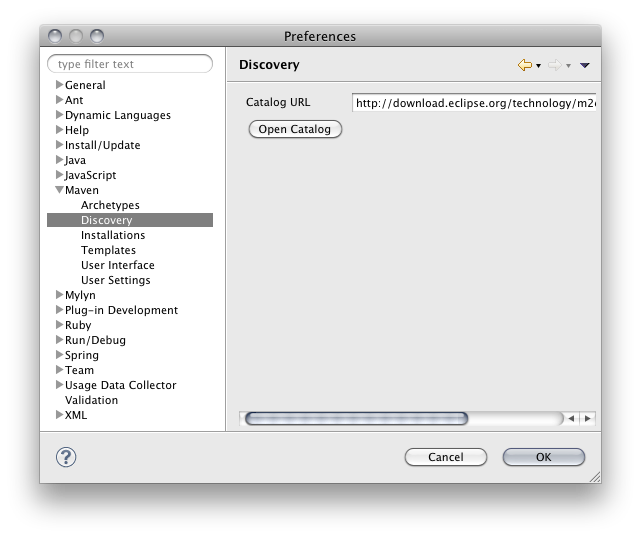
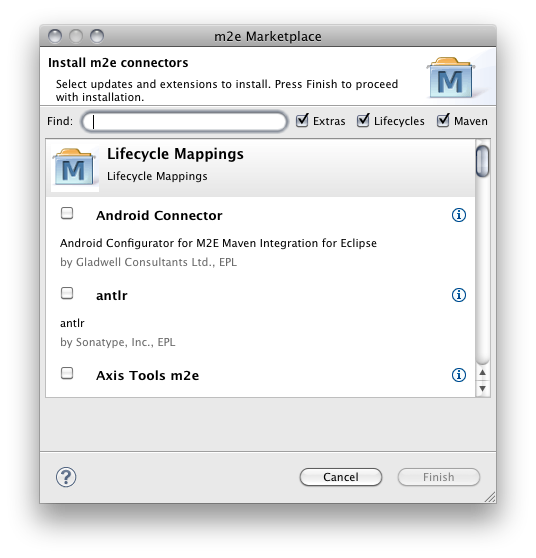
The following extensions should be installed:
- m2e-sublcipse
- maven.runtime.3.0.3
- m2e connector for maven-scm-plugin
- m2e connector for org.codehaus.mojo:jaxb2-maven-plugin and org.jvnet.jaxb2.maven2:maven-jaxb2-plugin
Spring IDE
Spring IDE helps you to debug/refactor Spring setting files on Eclipse. This is not required to build your Cytoscape app, but we strongly recommend to use this if you create Cytoscape 3 Native apps.
Checkout Cytoscape 3 App Developer's Template Project
Select File→New→Other→Maven→Checkout Maven Projects from SCM
Select Source Code Management (SCM) system type to svn
Make sure the URL is set to http://chianti.ucsd.edu/svn/core3/app-developer/trunk/ (for core developers, svn+ssh://grenache.ucsd.edu/cellar/common/svn/core3/app-developer/trunk/).
- Click 'finish' and you'll end up with something like this:

Build App Developer's Template Project
Right-click cytoscape project top folder
Select Run As → Maven Build
Type clean install in the Goals text box
Click Run button
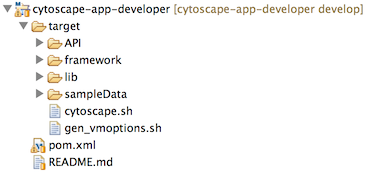
Now you can see the following directory structure under target directory:
Run Cytoscape 3
- Open command-line terminal.
Go into target directory you've just created with m2eclipse plugin
Execute cytoscape.sh (for unix/mac) or cytoscape.bat (windows)
If you can run Cytoscape, now you are ready to code your app.
Create the App
There are two types of apps for Cytoscape 3 and you can use Eclipse for both of them.
Simple App
Select New → Java Project
Enter project name. This can be anything. In this example, we use Cy3SimpleApp as a sample app name.
Add cytoscape-app-api jar file as a library
Right-click src folder and create a class file HelloWorldApp. Use org.cytoscape.sample as its package name
Create Manifest file. It's just a text file named MANIFEST.MF. The only entry you need to write in this file is the following:
Manifest-Version: 1.0
Cytoscape-App: org.cytoscape.sample.HelloWorldApp
This is your App's main class name.
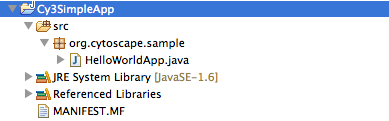
- Your project directory looks like this:
- Write App main class:
   1 package org.cytoscape.sample;
   2
   3 import org.cytoscape.app.CyApp;
   4 import org.cytoscape.app.CyAppAdapter;
   5
   6 public class HelloWorldApp extends CyApp {
   7
   8         public HelloWorldApp(CyAppAdapter adapter) {
   9                 super(adapter);
  10
  11                 System.out.println("Hello Cytoscape 3!");
  12         }
  13 }
  14
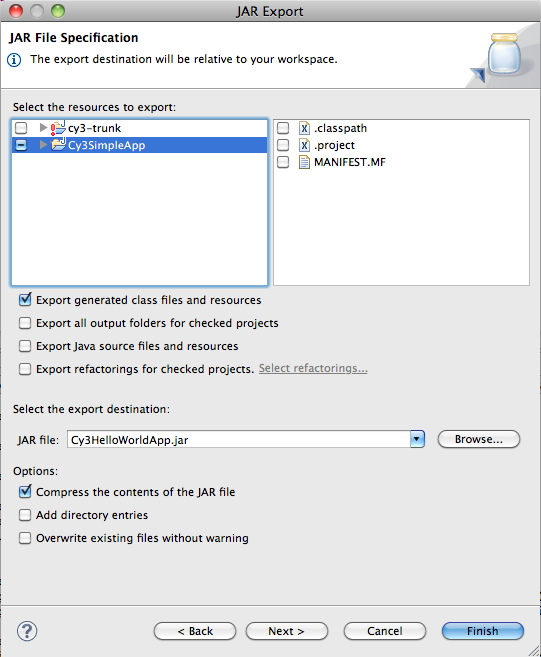
Select File>Export
Select JAR FIle and click Next
Uncheck MANIFEST.MF file. Otherwise, two manifest files will be created in the JAR!
Type app jar file name and click Next
Leave all settings as-is and click Next
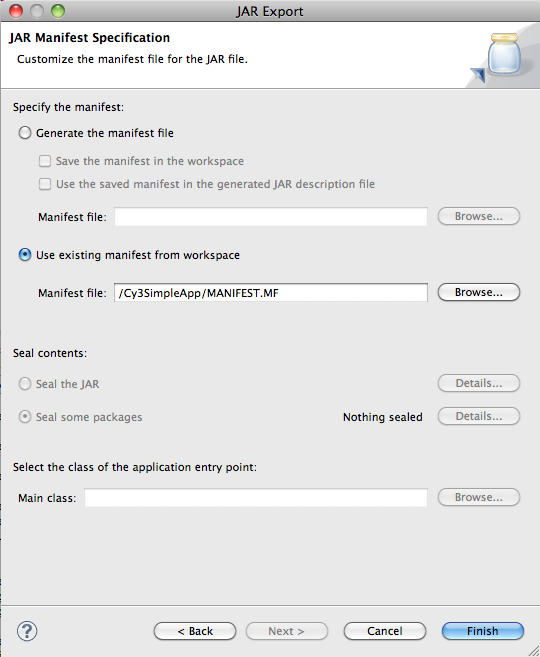
Select Use existing manifest from workspace and specify the one you've just created
Click Finish. Make sure the app jar file exists in the directory you specified above.
Test your app
- Run Cytoscape from command-line
Select Apps>App Manager
Select Import Local App tab
Click Select button and select the app jar file you've created
You can see Hello Cytoscape 3! in the console
For more realistic example, please try this tutorial:
Tutorial:Creating a Simple Cytoscape 3 App
Cytoscape 3 Bundle App
If you want to create Cytoscape 3 Native bundle app, please try the following tutorial:
Tutorial:Creating an OSGi Bundle Cytoscape 3 App
Questions?
If you find problems or have questions, please let us know.